Categories
Operations

Guide to use IC-9700 – Omnirig – PstRotator – Soundmodem – UISS

This is a short setup guide for using IC-9700 with PstRotator, Omnirig, Soundmodem and UISS. With this setup you can use AX.25 satellites like ISS and HADES-R.

I got many questions how to use all these software together with IC-9700 and I hope this guide can help. But… please read the PstRotator user guide for setting up Omnirig and IC-9700 and the UISS user guide. As you may notice I only explain the parts for setting up the connections so all the software can work together.

This setup guide is using USB connection between IC-9700 and PC. If you use LAN you need to change all settings for IC-9700 (DATA MOD, COM-ports, Virtual Audio channel).

The Omni-Rig version that is working OK for me is v1.18. I know there are other versions but I recommend v1.18 and the IC-9700PST config file that are delivered with PstRotator.

The Soundmodem settings explained here can of course be used for any other versions of the Soundmodem, not only for UISS.

Note again: this guide will not cover configuration of the UISS and PstRotator software, only the connections between these.

IC-9700 Setup

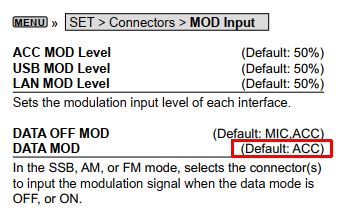
Set the DATA MOD to use USB:

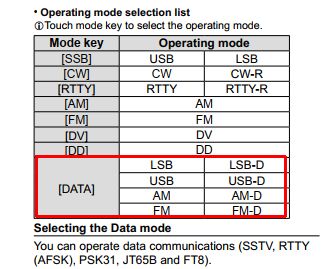
Be sure to use DATA MOD as mode, for example FM-D, USB-D:

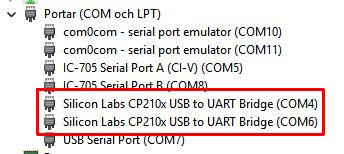
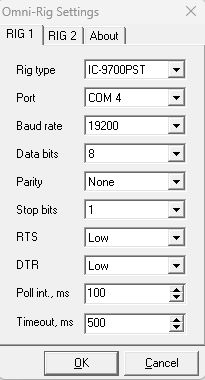
See what the number of the IC-9700 COM ports are, this is my setup, COM4 is the correct number for my connected IC-9700. But you can have a different number. One COM port is used by PstRotator for doppler adjustment, the other one is used for PTT keying (see below).

PstRotator – Omni-Rig Setup

The Omni-Rig setup I’m using is like this. Note the COM 4 port:

PstRotator – Satellite Setup

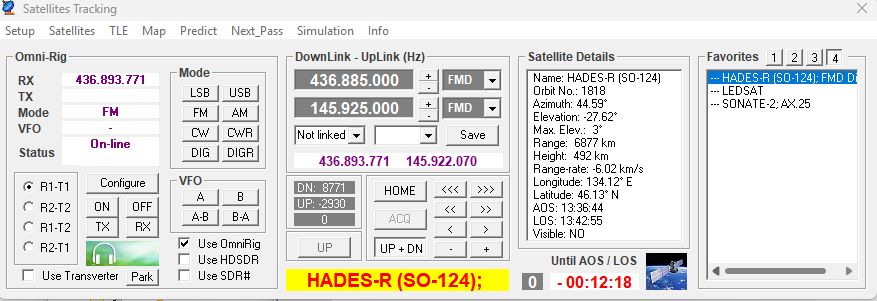
There are several ways to edit satellite information in PstRotator. You can select “Satellites”, enter frequency info and the add to Favorites. Or you can edit Favorites text file manually. Please see the PstRotator manual for more information.

As an example, here are the config I’m using in Favorites text file (Satellites{x}.txt) for HADES-R (SO-124) satellite that is using FM-D (data mode):

[SONATE-2; AX.25]
DownLink=145825000
UpLink=145825000
RxMode=FMD
TxMode=FMD
Linkage=Not linked

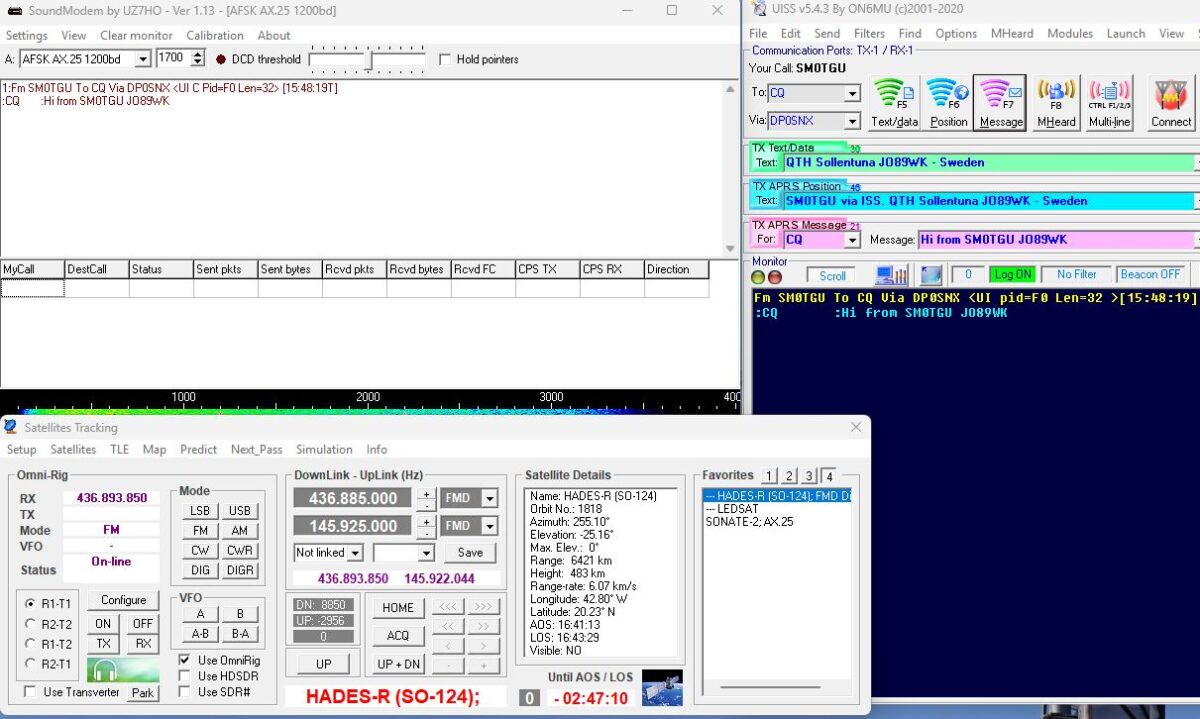
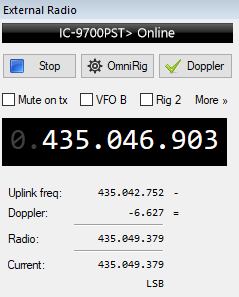
When all is configured correct you should now have doppler correction of the IC-9700, the frequency and DATA mode set automatic:

UISS and Soundmodem installation

Download and install UISS. During installation, install the Soundmodem software TNC. Note again: this guide will not cover configuration and functions of the UISS software.

Download the file ptt-dll.zip from Soundmodem webpage. Unzip and copy the files (CAT and PTT dll files) to your UISS installation folder. The PTT dll file is needed for the keying of IC-9700.

Soundmodem Setup

Start UISS and Soundmodem (can be auto started by UISS).
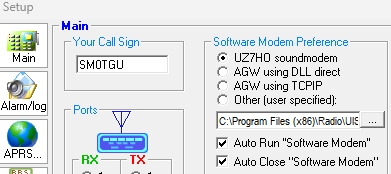
The setup for “Auto Run” in UISS should be like this (replace the folder path to your installation location of UISS/Soundmodem):

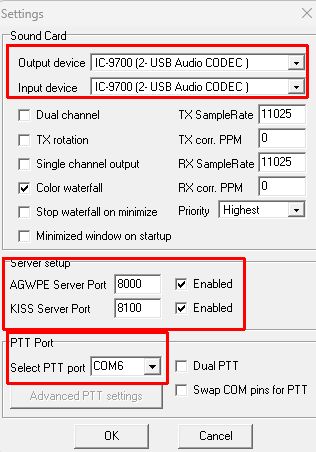
Now go to Settings in Soundmodem.

  • Sound card: should be the USB audio soundcard (In and OUT) for your IC-9700, could be named as something else. It is possible to edit the soundcard names in Windows so I renamed mine to “IC-9700”.
  • Server setup: this is the connection ports for UISS.
  • PTT Port: This is the other COM-port for your IC-9700 (remember that we used COM 4 in Omnirig). Soundmodem is using the PTT-dll file that you downloaded before to be able to key the IC-9700.

Test UISS PTT keying – End-2-End test

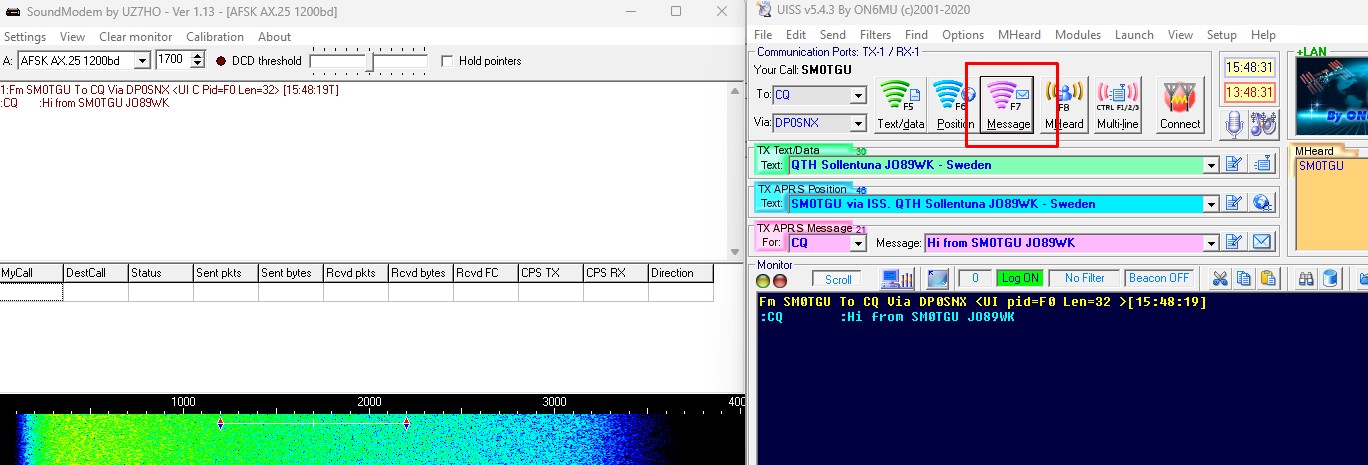
Now it is time to test PTT keying, what we call End-2-End test 🙂 In my example UISS is configured for HADES-R (SO-124) so the “Via” callsign is DP0SNX.
Press F7 (or click “Message”) and the IC-9700 should key and transmit the text in “TX APRS Message” box and at the same time as PstRotator is adjusting the IC-9700 frequency for doppler:

End of setup guide – good luck!

Categories
Ham Satellite news Operations

How to use UISS for SONATE-2

This is how I used UISS to work a QSO via SONATE-2 satellite. Note: it is not a complete setup guide how UISS and Soundmodem. You can use Google if you need a guide, see this post for IC-9700 or look at this post for IC-705.

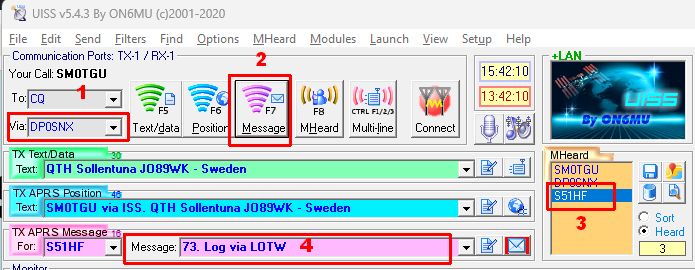
  1. Be sure to use DP0SNX as your “via” callsign, to be able to get digipeater via SONATE-2.
  2. Press F7 och click Message to send your text in the “TX APRS Message” area. When you call CQ, change “For” to CQ. In the Message area you can enter your locator.
  3. When someone answer you you can see the callsign the “MHeard” area. Just click on the callsign, and “For” in the “TX APRS Message” area will change to this callsign.
  4. Now you can answer back (reply and confirm) to complete the QSO.

SONATE-2 is using simplex 145.825 MHz FM. More info at this page.

Categories
För nybörjare Operations

Free Getting Started compendium from AMSAT-NA

AMSAT-NA has a free “Getting Started” compendium available for download. AMSAT-NA tells us:

Here is a freely downloadable compendium of “getting started” articles written by Keith Baker, KB1SF/VA3KSF. These articles originally appeared in The AMSAT Journal from 2019 to 2021.

Unfortunately, because both satellites and URLs change over time, the currentness of information such as this can quickly be overcome by events. However, the tools and techniques outlined in Keith’s beginner series are still very much applicable to operating on current and future AMSAT satellites.

Please download here

Categories
Operations

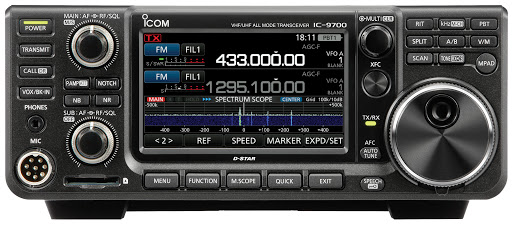
Working satellites with IC-9700

This is a guide how to work satellites with the Icom IC-9700. When trying to understand the IC-9700 I needed to write down how to use it – so this is how this post was born. Several different user scenarios are explained below.

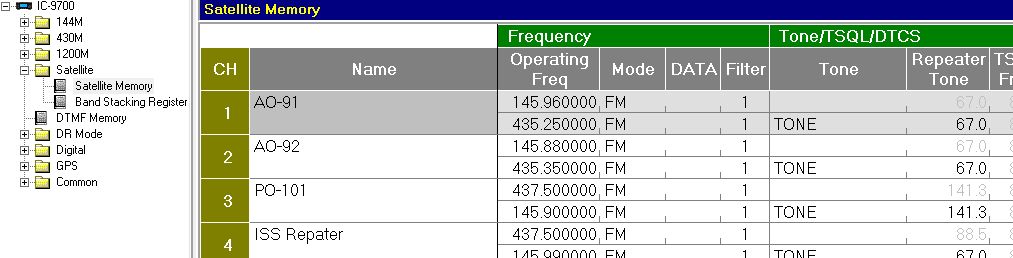
The IC-9700 satellite memory examples and file can be found here.
Please contact us if you see anything that will not work in the following user cases.

Setting up PstRotator and OmniRig

The PstRotator manual is very good so please read it, very important is the section how to use IC-9700 with PstRotator satellite functions.

The file for OmniRig is delivered with PstRotator and is named IC-9700PST.ini. Do not forget to copy this file to the OmniRig folder.

My settings for OmniRig is like this:

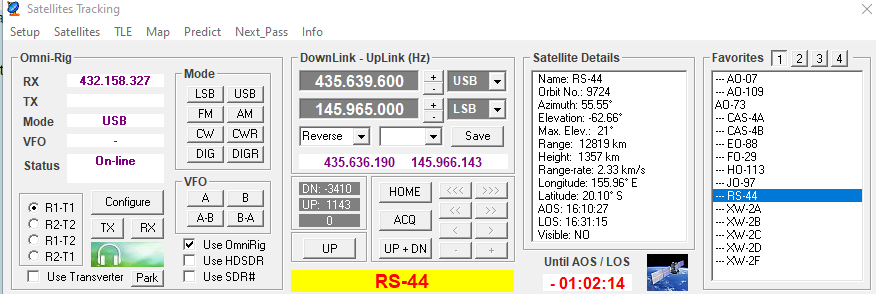
And a typical layout for PstRotator Satellites Tracking is like this:

Case 1: Using IC-9700 stand alone without computer control

Read the IC-9700 Basic Manual section 7 “Satellite communication”. It has all the information you need.

I have tested linear satellites with manual tuning (RS-44) and it worked very good. My uplink TX signal (VHF) was fixed and I tuned the downlink signal (UHF) when needed. The VFO tracking/untracking function of the IC-9700 is outstanding.

Some basic rules I learned from skilled operators:

  • “Tune the highest frequency”
  • “Always tune UHF to VHF” – the same as fix the VHF frequency and tune UHF.

Case 2: Using IC-9700 with PstRotator

Once again – first read the excellent manual of PstRotator and the section about satellites and IC-9700. Then – read it one more time!

Some operating hints:

  • Select the satellite from PstRotator Favorites. Correct frequency, mode and subtone (if needed, for FM) are now set to IC-9700, and the radio goes into Satellite Mode. The filter selection, for example if you have chosen FIL2 for USB, should not be changed from PstRotator.
  • The first time on a satellite you may need to correct the offset with the +/- and then click Save.
  • Press the “UP+DN” on PstRotator. Doppler is now adjusted on both RX and TX. You can use the VFO knob on the IC-9700 to tune around on the passband with full doppler control, very nice! Just transmit and you should hear yourself.
  • If a station you would like to receive, or your own signal, is off frequency it can be good to use the RIT on the radio to adjust RX frequency in a smooth way, without changing the PstRotator settings. Also the PBT (Pass Band Tuning of RX filter) can be good to use during RX.

Case 3: Using IC-9700 as TX with SDR-Console v3 as RX

In this case the IC-9700 is working as the transmitter with full doppler control and SDR-Console with a SDR (or panadapter for IC-9700) as receiver, also with doppler control. Be sure to set the correct band for TX to the MAIN VFO in IC-9700 and do not use the Satellite Mode. Then use the same setup as described in this post.

It is possible to use the VFO knob on IC-9700 to tune the TX frequency.

Case 4: FT4 with IC-9700 and PstRotator

Be sure to use DATA mode settings in PstRotator. Then the IC-9700 is using the filter you have selected for DATA.
Then use it just like Case 2 above.

Case 5: FT4 with IC-9700 as TX and SDR-Console v3 as RX

Use the IC-9700 as transmitter and SDR-Console with SDR (or panadapter for IC-9700) as receiver. Be sure to set the correct band for TX to the MAIN VFO in IC-9700 and do not use the Satellite Mode Use the same setup as described in this post.

This is the setup I’m using when running FT4 because I think it gives better control over the QSO than using PstRotator.

Categories
Operations

Satellite Memory File for IC-9700

This is a memory group file over satellite frequencies for Icom IC-9700 and CS-9700 software. Feel free to use it, change and add, make your own groups etc.

Import the memory file into CS-9700:
Note! Be sure that you not overwrite anything in your IC-9700 when cloning and/or importing the .csv file! Make a backup of your current settings!

  • Mark the Satellite Memory group
  • Right click and choose import the .csv file
  • The memories will now be imported to CS-9700

As CS-9700 seems to handle character set different between regions I have created two files. If one does not work, try the other one. Comma separated is working for North America.

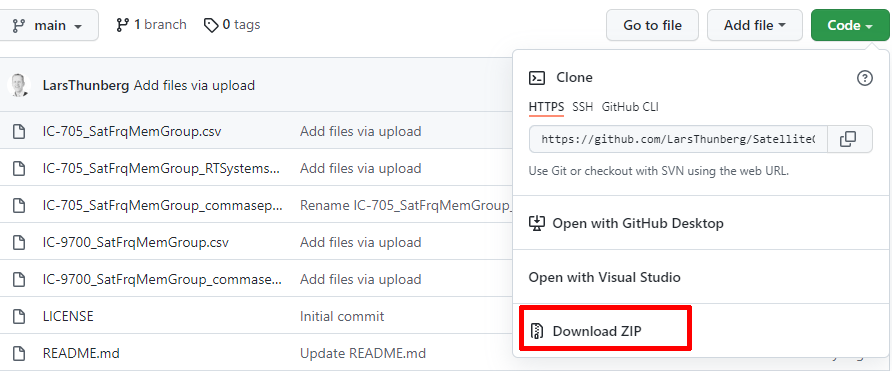
Download the latest files from SM0TGUs Github:
IC-9700_SatFrqMemGroup.csv
IC-9700_SatFrqMemGroup_commaseparated.csv

Note! When downloading from GitHub, you download all the files in the repository as a zip file. Then you can use the file of your interest:

If you have any problems downloading the files from the GitHub location please contact us and the files can be sent via mail.

Categories
Operations SDR and software

Guide to AX.25 via OPUSAT-II

OPUSAT-II, or Hirogari satellite, has the possibility to send, store and receive short AX.25 messages. This is a simple guide how to set up a Windows system to send and receive via OPUSAT-II.

  1. Download Soundmodem from http://uz7.ho.ua/packetradio.htm
  2. To be able to key your radio, download ptt-dll.zip from the same page and unzip these files to the same folder as Soundmodem
  3. If you use IC-705, download http://uz7.ho.ua/cat121.zip and replace the CAT.DLL file from ptt-dll.zip
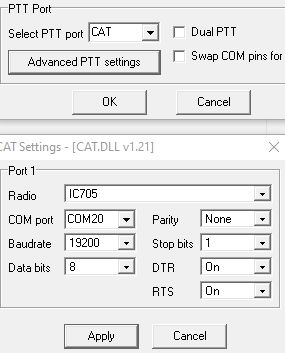
  4. Start Soundmodem and set up the ptt for your radio:
  5. Setup the audio input and output to your radio in Soundmodem under Devices menu.
  6. Download MessageBox software from http://uz7.ho.ua/kissmsg8.zip and unzip
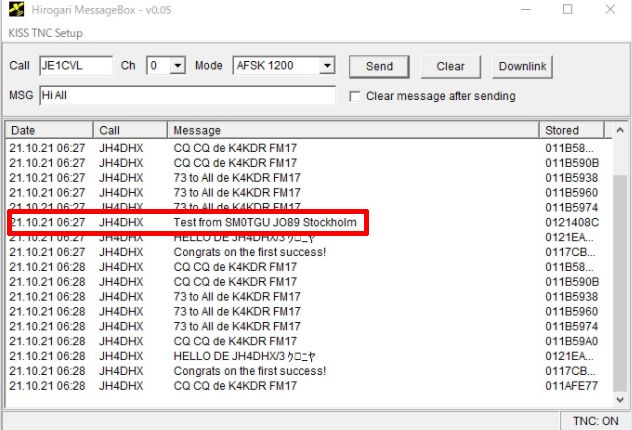
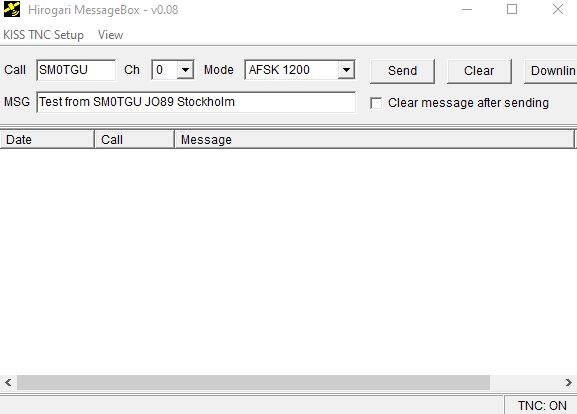
  7. Start MessageBox. It should connect to soundmodem.
  8. When OPUSAT-II is in range, transmit via MessageBox (Send) at 436.500 MHz FM and receive at 145.900 MHz. If you are lucky, your AX.25 is stored in OPUSAT-II: