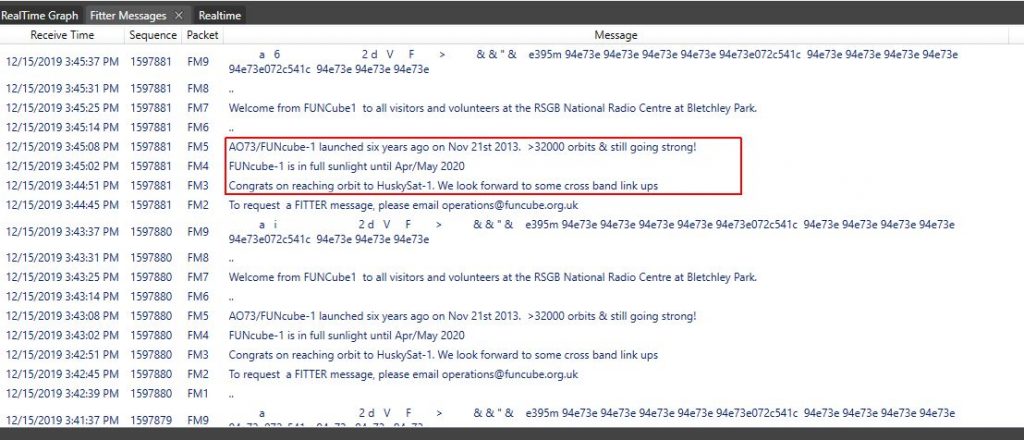
Nice with updated messages from AO-73!
 AMSAT-SM - Official Website of AMSAT-SM Sweden
Webmaster and member of the AMSAT-SM steering group.
Nice with updated messages from AO-73!
Calling all radio amateurs! ESA is challenging anyone with amateur radio equipment to catch the first signals from OPS-SAT, ESA’s brand new space software laboratory.
See more at http://www.esa.int/Enabling_Support/Operations/Calling_radio_amateurs_help_find_OPS-SAT
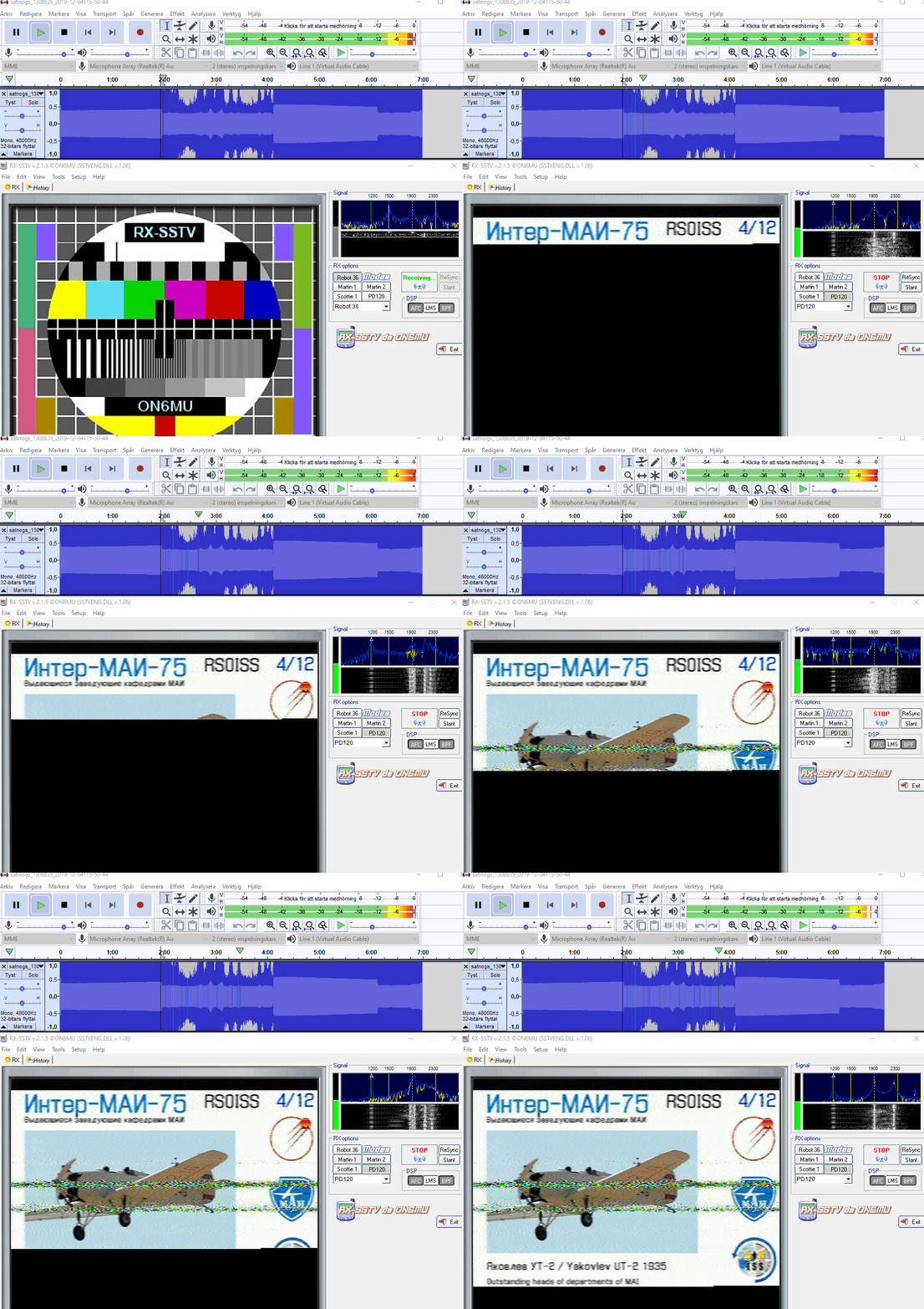
This is a SSTV image received via SATNogs station, replayed in Audacity and image demodulated in RX-SSTV. Date was 2019-12-04.
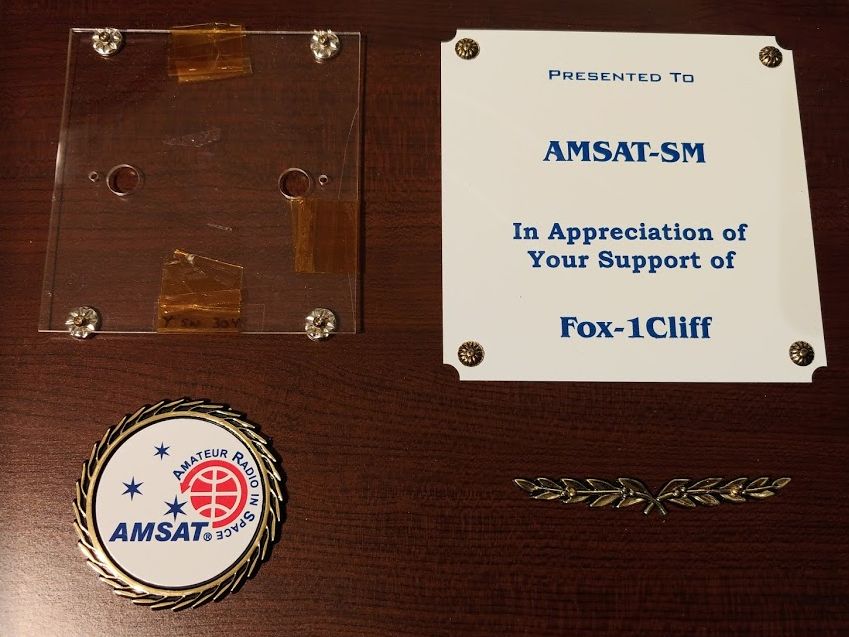
As a result of donation from AMSAT-SM to the Fox satellite project we have now received a plaque with an actual solar panel cover from Fox-1Cliff. Thank you @AMSAT (AMSAT-NA) for this very nice gift and good luck with the future of the Fox project!
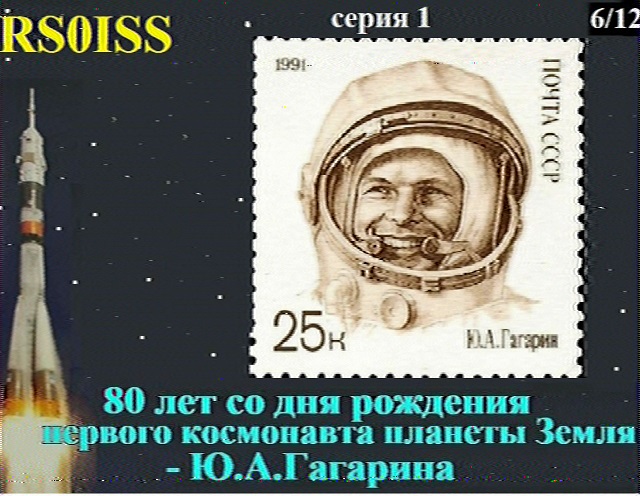
Russian cosmonauts are expected to activate Slow Scan Television (SSTV) image transmissions on 145.800 MHz FM from the International Space Station on Wednesday to Friday, December 4, 5 and 6.
This is the schedule for the planned activation of the MAI-75 SSTV activity from the ISS.
• Dec 4: On – 12:00 GMT, Off – 16:50 GMT
• Dec 5: On – 11:25 GMT, Off – 17:15 GMT
• Dec 6: On – 10:20 GMT, Off – 16:40 GMT
Transmissions will be sent on 145.800 MHz FM in the SSTV mode PD-120. Once received, images can be posted and viewed by the public at http://www.spaceflightsoftware.com/ARISS_SSTV/index.php
ISS SSTV uses a Kenwood TM D710E transceiver which is part of the amateur radio station located in the Russian ISS Service Module.
Please note that SSTV events are dependent on other activities, schedules and crew responsibilities on the ISS and subject to change at any time. You can check for updates regarding planned operation at:
ISS Ham https://twitter.com/RF2Space
When using several softwares for satellite telemetry decoding it is essential that you have the possibility to move (pipe) the audio streams between the different programs. One of the best programs is Virtual Audio Cable (VAC).
I will describe the fastest way to get started with this program on Windows 10.
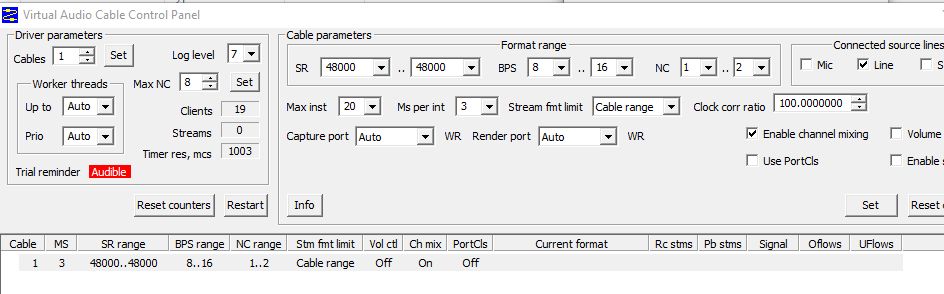
Set up a virtual audio line:
After installing VAC, the first thing you do is to set up a virtual line with the control panel . I’m using a sample of 48 kHz like this:
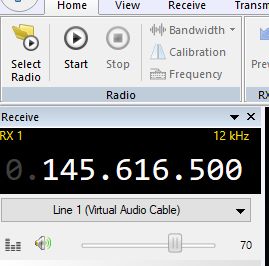
Use the virtual line from source software:
In this case I’m using SDR-Console V3 and choosing the virtual line as output.
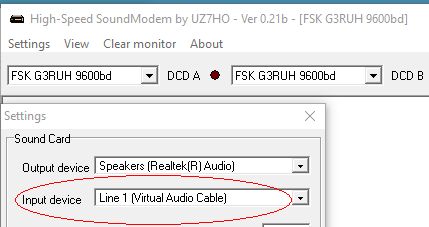
Use the virtual line at destination software:
For decoding telemetry the first step is using a sound decoder, here Soundmodem. Set the audio input line to the virtual line:
Now you have created a audio pipe “inside” your PC!
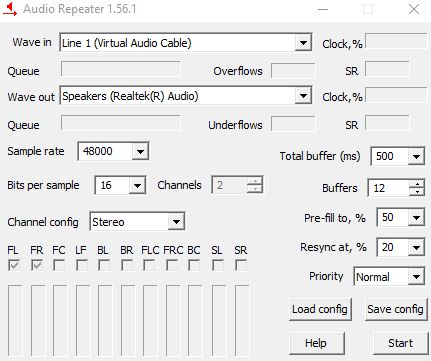
If you would like to listen to the audio, you can use VACs Audio Repeater to also pipe the virtual line to your computer’s audio output (headphones or speakers):
You can download and try VAC from this site:
https://vac.muzychenko.net/en/index.htm
And for a small fee you can buy a license for the full-featured version.